Personal field descriptions (WCAG)
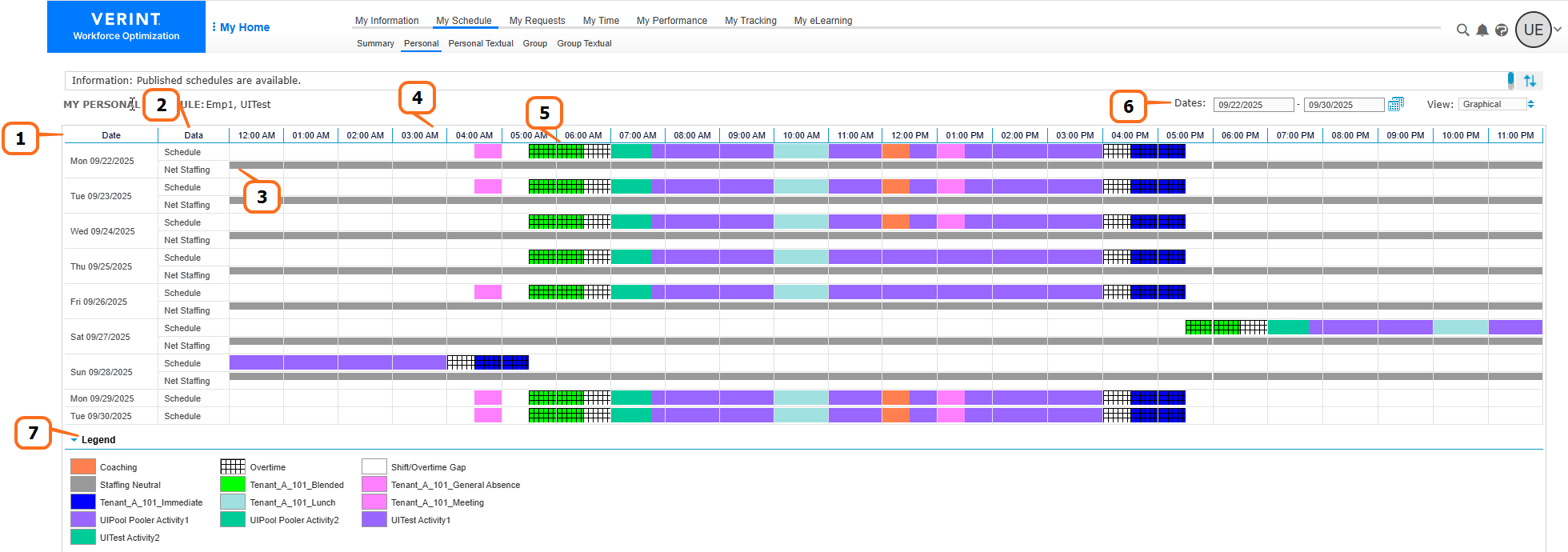
When viewing your schedule in Personal graphical view, the details of your schedule are displayed in a graphical format.
To view details about shift Work period in WFM that has a definite length. events, place your cursor over the event. You can use the Net staffing ribbon to view staffing levels for specific times, and create a Shift Request & Change or Voluntary Time Off request.
|
Number |
Column |
Description |
|---|---|---|
|
1 |
Date |
Specific day on the schedule. |
|
2 |
Data |
Includes two types of data:
|
|
3 |
Net Staffing Ribbon (optional) |
If enabled in Preferences, the Net Staffing ribbon shows the staffing level at specific times on your schedule, including Neutral, Overstaffed, and Understaffed. |
|
4 |
Time |
Specific time on the schedule. |
|
5 |
Shift event |
Shows the shift events during a shift on the schedule (according to the legend). To get the event details, including activity Core component of both schedules and time records in Workforce Management (WFM). When an employee performs any kind of work, activities specify the scheduled work and capture employee adherence to their schedule., time range, and other details, place your cursor over an event. |
|
6 |
Dates |
Date range of the personal schedule currently displayed on the workspace Area within an application window where the user interacts with the program.. |
|
7 |
Legend |
Indicates the color legend for the graph. |