Print a class
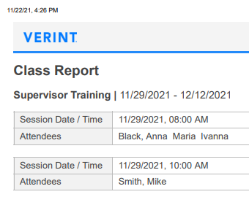
If needed, you can print a class schedule. Printing a class can be helpful to give to trainers, so that they are aware of who is attending their classes.
Procedure
-
From Tools, select Classes.
-
From the left panel on the Classes screen, select the class you want to print.
-
Select the Print class icon
 .
. -
From the standard print browser dialog, select Print.
The system prints a Class Report, displaying the name and date of the class, and information about each session, including the date, time, and attendees.